
How To Work With Date & APIs – A step By step Guide.
Working with Data and APIs. Data is presented in different formats. This guide contains information, tips and suggestions on how to use some of the formats presented in the Open Data Portal as well as how to work with some of the application programming interfaces (APIs).
Structured data is usually in the form of text but follows a specific format giving it machine readability. Some more complex formats may be in binary format such as maps and GIS related files. You will find many different formats in the Open Data Portal. This section covers some of the popular formats and provides some tips on how to work with them.
Comma-Separated Values (CSV)
The easiest method for working with a Comma-Separated Values (CSV) file is to use a spreadsheet application such as OpenOffice Calc or Microsoft Excel. Simply launch the application and open the .csv file to launch the application’s CSV import wizard.
Character Encoding
One important detail is to pay attention to Character Encoding which can affect how the data, mainly the text is parsed during the import. This will be more noticeable when dealing with languages such as French which contain extended characters.
OpenOffice provides easy selection of the character encoding to be used. Figure 1 and Figure 2 illustrate an example where the downloaded CSV dataset file was encoded using a different format than the default UTF–8 for OpenOffice (illustration using NeoOffice).
Figure 1: Example of a CSV import wizard showing incorrect encoding
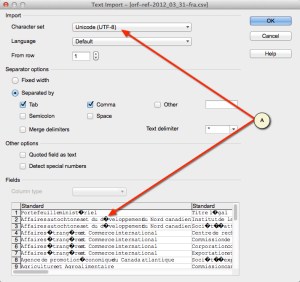 Accessible description of Figure 1. Screenshot showing the comma-delimited file import wizard in Neo Office. The file being imported contains French extended characters. The user has selected UTF-8 as the character encoding. The preview area is displaying the characters incorrectly as it is not the proper character encoding for this file.
Figure 2: A CSV file imported using the incorrect character encoding
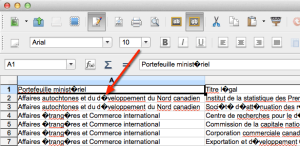 Accessible description of Figure 2.
A comma-delimited file displayed in the Neo Office spreadsheet editor. The file contains French extended characters which were not properly imported due to using the incorrect character encoding.
Another common 8-bit character encoding in Canada is ISO–8859–1. In this scenario, selecting the ISO–8859–1 character encoding resolves the extended character issue as shown in Figure 3 and Figure 4.
Figure 3: A CSV import wizard showing proper character encoding
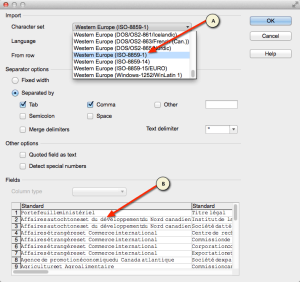 Accessible description of Figure 3. Screenshot showing the comma-delimited file import wizard in Neo Office. The file being imported contains French extended characters. The user has selected the appropriate ISO-8859-1 encoding and the preview area is displaying the characters properly.
Figure 4: A CSV file imported into NeoOffice using the proper character encoding
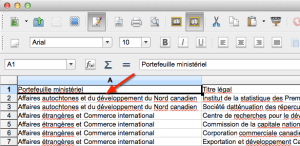 Accessible description of Figure 4.
A comma-delimited file displayed in the Neo Office spreadsheet editor. The file contains French extended characters which were properly imported using the correct character encoding.
You may notice character encoding issues when opening a CSV file in Microsoft Excel as shown in Figure 5. For this example, we will be using Microsoft Excel in Microsoft Office Professional Plus 2010.
Figure 5 – File opened in Excel using incorrect file encoding
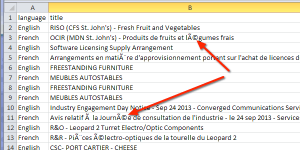 Accessible description of Figure 5.
A screenshot of a comma-delimited file opened in Excel showing incorrectly decoded French characters.
The character encoding can be manually selected using the data import wizard. The first step is to start with a new Excel workbook. Go to the Data tab and click on From Text which will launch the import wizard (Figure 6).
The first step in the wizard is to select the appropriate encoding. In this example, we are selecting the UTF-8 encoding which is located near the bottom of the list. Once selected, you can preview the character decoding in the data preview pane of the wizard.
Figure 6 – Selecting UTF-8 in Text Import Wizards
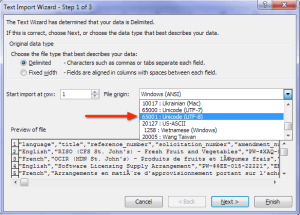 Accessible description of Figure 6.
A screenshot showing Step 1 of 3 of the Text Import Wizard in Microsoft Excel. The file origin list box is open with Unicode UTF-8 selected.
The next step (Figure 7) allows you to specify the proper delimiter(s) used in the data file. Once again, the Data preview pane allows you to preview your data and see if it is parsing the data correctly.
Figure 7 – Selecting delimiters in Text Import Wizard
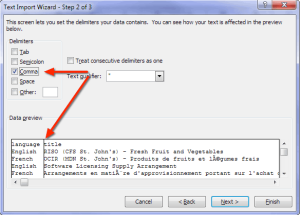 Accessible description of Figure 7.
A screenshot showing Step 2 of 3 of the Text Import Wizard in Microsoft Excel. The Comma delimiter is checked and the data preview pane is showing the data separated into columns.
Optionally, you can specify the data types for each of the columns (Figure 8). In most cases, simply clicking Finish will suffice.
Figure 8 – Selecting data formats in Text Import Wizard
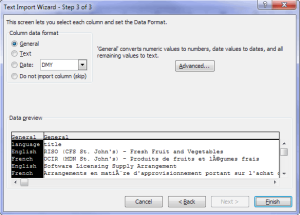 Accessible description of Figure 8.
A screenshot showing Step 3 of 3 of the Text Import Wizard in Excel. This step has settings allows the user to set the data formats for each of the columns. The defaults are used for this example.
Figure 9 shows the characters properly decoded in Excel having used the Text Import Wizard.
Figure 9 – Data imported into Excel using proper character encoding
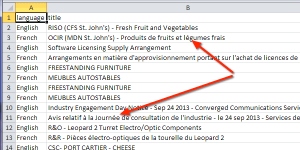 Accessible description of Figure 9.
A screenshot showing a comma-delimited file imported into Excel using the Text Import Wizard. The French characters are shown properly having applied the appropriate character encoding.
Byte Order Mark (BOM)
You may discover an interesting special byte at the beginning of a file. This byte is called the Byte Order Mark or BOM. This marker is used to signal the size of the character encoding used in the UTF encoded file.
For example, UTF–16 will render as U+FEFF (Figure 5) or þÿ in a text editor capable of displaying this value. In general, you do not need to concern yourself with the BOM as it is used by the application you are using. However, it can be a useful byte to help you select the correct file encoding during an import if you are having issues.
Figure 10: A Byte Order Mark in a data file. 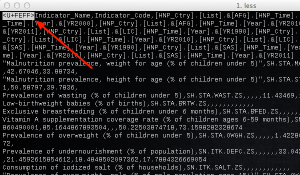 Accessible description of Figure 10.
A Byte Order Mark displayed in a text editor.
JavaScript Object Notation (JSON)
JavaScript Object Notation (JSON) is a structured open data format that is lightweight and very well suited for mobile applications. It is used either natively or as a library available in most web and mobile development languages. Detailed information on JSON can be found on the official JSON web site.
Here are 9, simple example of JSON data
- “metadata”:{
- “request”:{
- “dateCreated”:“2014-01-01T00:00:00+00:00”,
- “name”: “Example JSON Dataset” },
- “items”:[
- { “name”:“Item 1”, “colour”:“red” },
- { “name”:“Item 2”, “colour”:“blue” }
- ]
- }
We have lots of great examples of working with JSON data and RESTful APIs in various programing languages.
eXyensible Markup Language (XML)
XML (eXtensible Markup Language) defines a set of rules for encoding documents in machine-readable form. It is defined in the XML 1.0 Specification. Always use news9ja tools to research your experience and more.

Leave a Reply